
Note2Tabs Guitar tab editor
YouTube to Guitar Tabs Converter
Paste a YouTube link, choose a riff or solo, and convert the clip into a structured, editable guitar tab—without downloading the video first.
How it works
Paste a link
Add a YouTube URL and select the part of the song you want to transcribe.
Generate the tab
Create a structured guitar tab from the selected YouTube segment.
Edit online
Use the complete editor to arrange sections, shape notes and chords, practise, and export.
Focus the transcription on the exact riff you need
Paste a public YouTube URL, set the start and end times, and transcribe a focused clip. The link mode opens automatically, so you can go straight from this page to choosing the section.
Selecting a precise segment makes the result faster to review and avoids spending credits on parts you do not need.
Free: 30 seconds. Premium: 10 minutes. Pro: 20 minutes. Your clip can start anywhere in the video.
- Timestamp controls Choose a specific solo, riff, or chord passage instead of processing the whole video.
- No download step Start from the YouTube link without first saving an audio file to your device.
- Complete editor included Open the tab to write, arrange, play, practise, and choose guitar positions.
Turn a YouTube riff or solo into an editable tab
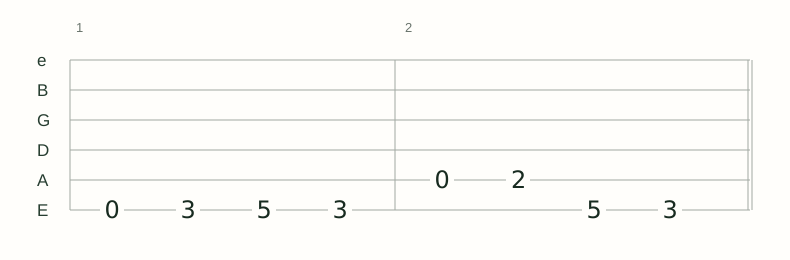
The converter reads the selected audio segment and creates timed notes with guitar string and fret positions. The result opens as a real Note2Tabs project—not a screenshot—so you can correct a phrase, choose another fingering, arrange sections, practise loops, and export the tab.
Use the timestamp controls to target the musical part behind your search. A short, clear section is usually more useful than processing an intro, spoken lesson, silence, and the riff together.
Choose a YouTube clip that is easier to transcribe
Clear covers, lessons, playthroughs, and isolated guitar performances give the model more guitar detail than noisy live recordings or full mixes where several instruments occupy the same range.
Set timestamps around the exact riff, chord passage, or solo you need. A focused clip is faster to inspect and makes it easier to compare the generated tab with the original performance.
- Prefer a video where the guitar is clearly audible.
- Free: 30 seconds. Premium: 10 minutes. Pro: 20 minutes. Your clip can start anywhere in the video.
- Avoid intros, talking, or silence outside the section you need.
- Use the same timestamp when you want to play the tab alongside the original performance.
Why the homepage and this converter serve different jobs
The Note2Tabs homepage is the quickest place to start from either audio or YouTube. This page is specifically for people starting with a video link and explains the clip limits, timestamp workflow, source-quality tradeoffs, and editing process in more detail.
If you already have an MP3 or WAV file, use audio upload instead. If the best version is a public cover, lesson, or performance on YouTube, use this focused converter path.
Frequently asked questions
How long can the YouTube clip be?
Free: 30 seconds. Premium: 10 minutes. Pro: 20 minutes. Your clip can start anywhere in the video.
Can I edit the generated YouTube tab?
Yes. The transcription opens as a native Note2Tabs editor project with writing, arrangement, fingering, playback, practice, and export tools.
Do I need to download the YouTube video first?
No. Paste the public YouTube URL directly, choose the timestamps, and start the transcription from the link.
Is the YouTube-to-tabs converter free?
Free: 30 seconds. Premium: 10 minutes. Pro: 20 minutes. Your clip can start anywhere in the video.
What can I do with the generated tab?
Play it, arrange sections, choose alternate fingerings and chord shapes, add guitar techniques, practise loops, and export it from the editor.
Can I convert only one riff or solo from a YouTube video?
Yes. Enter the start and end timestamps for the exact section you want instead of converting unrelated parts of the video.